> ## Documentation Index
> Fetch the complete documentation index at: https://docs-docflow.textin.ai/llms.txt
> Use this file to discover all available pages before exploring further.

# How to Configure File Categories

## Category Configuration Page Entry

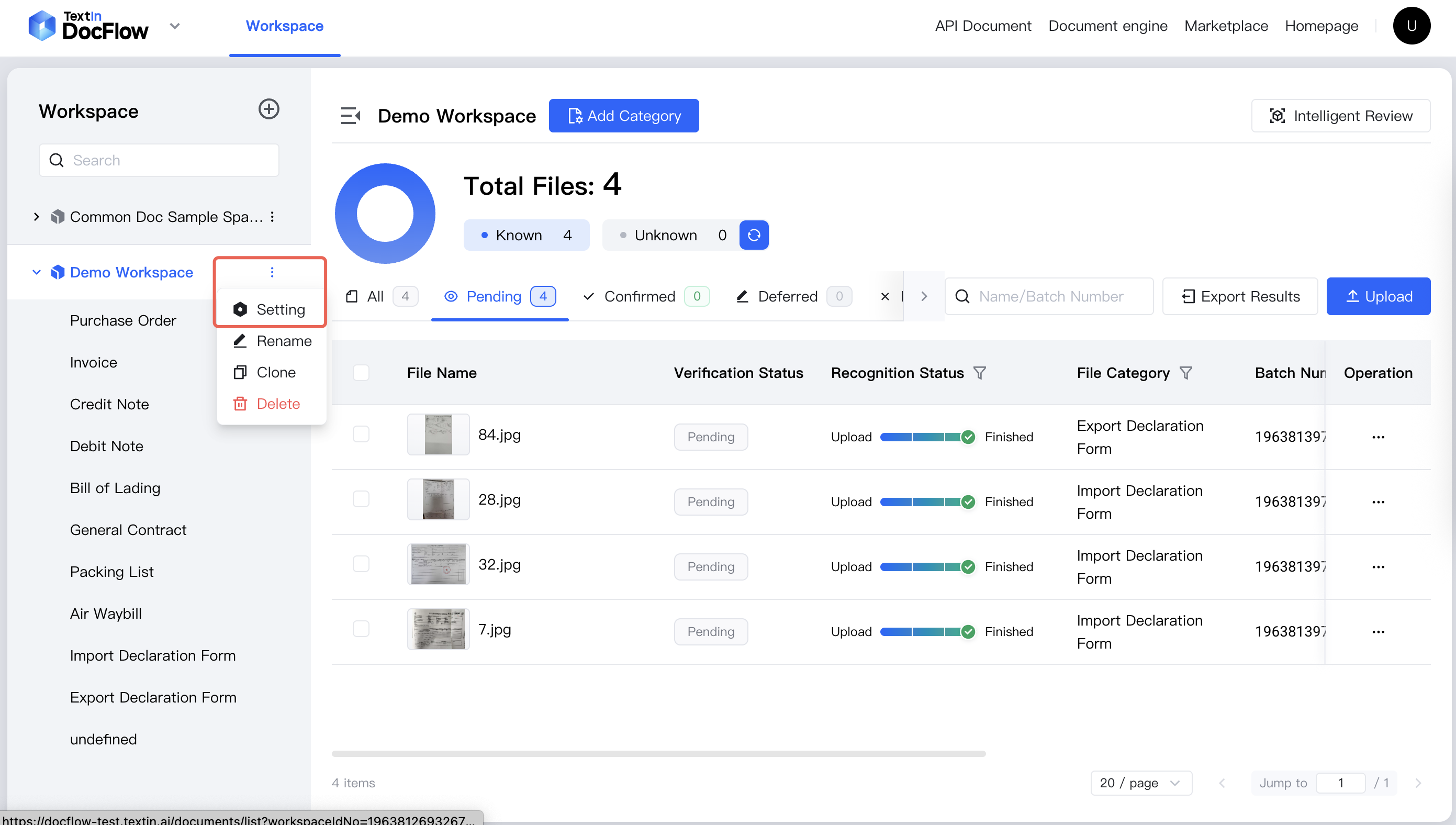
1. In the workspace list, select a workspace - click **More Actions - Settings**
<img src="https://mintcdn.com/docflow-bbb41569/k_S89GR_8tYdQ75P/docflow-global/en/images/get_workspace_id_step_1-en.png?fit=max&auto=format&n=k_S89GR_8tYdQ75P&q=85&s=bc4f4b3b3bfc9a598fe4034079d47e7e" alt="workspace setting" width="2782" height="1576" data-path="docflow-global/en/images/get_workspace_id_step_1-en.png" />

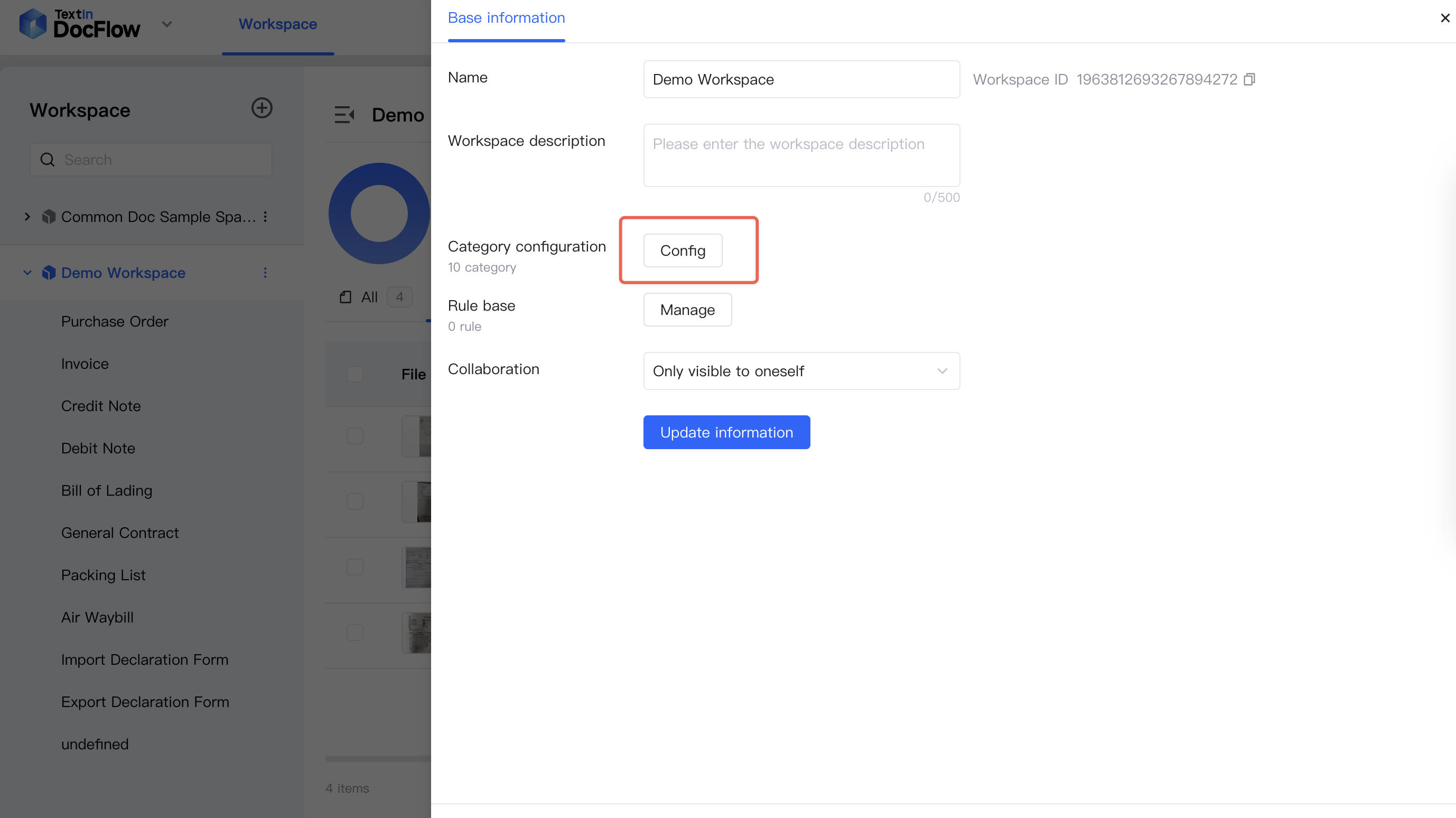
2. In the pop-up slide window, click category **Configuration** to enter the file category configuration page
<img src="https://mintcdn.com/docflow-bbb41569/k_S89GR_8tYdQ75P/docflow-global/en/images/setup_category_step_2-en.png?fit=max&auto=format&n=k_S89GR_8tYdQ75P&q=85&s=8d0dc90b106aa84381c67e5952ebd6bb" alt="workspace setting" width="2756" height="1548" data-path="docflow-global/en/images/setup_category_step_2-en.png" />

## Add Category Sample Files

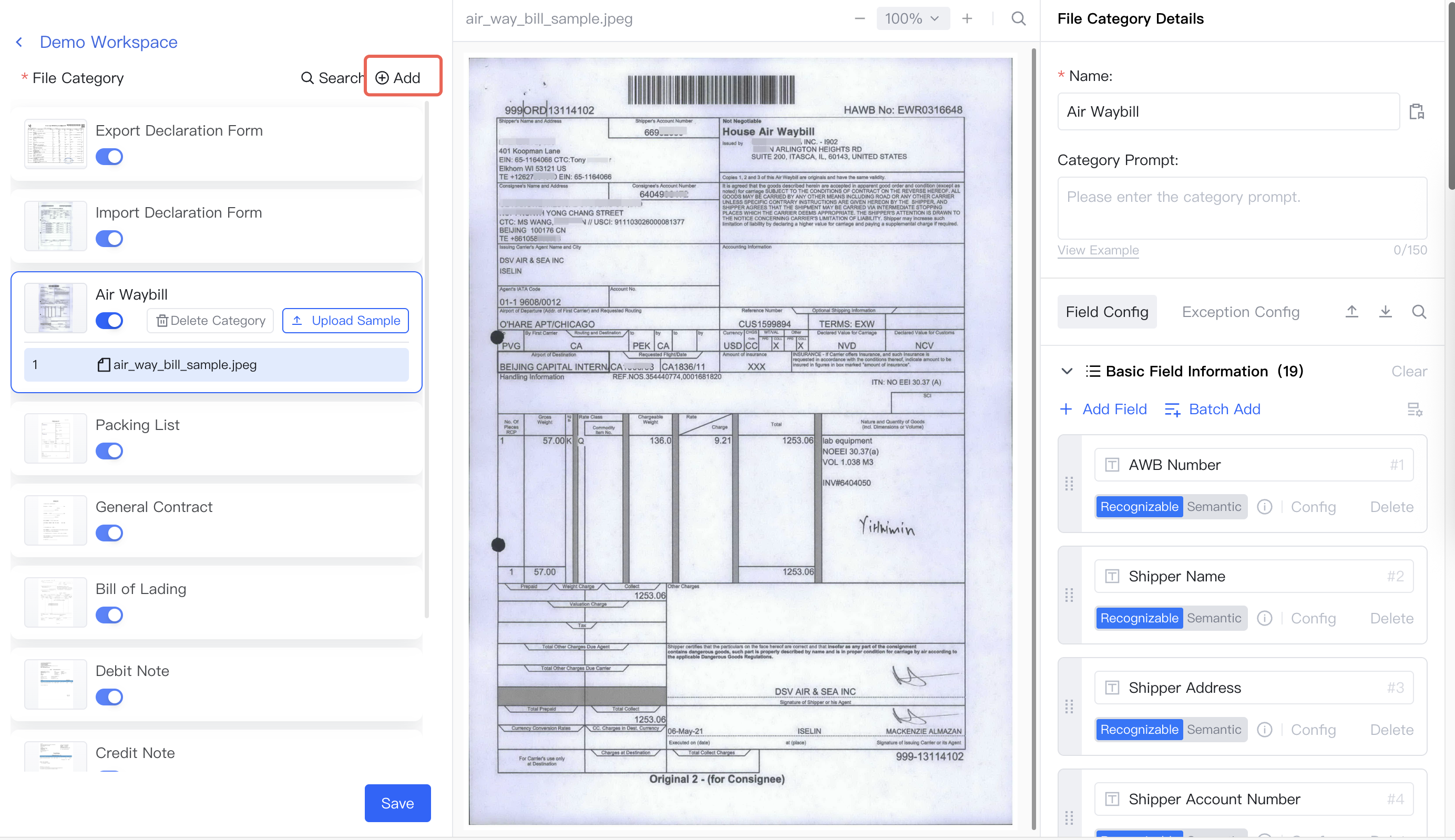
1. Click **Add Category**
<img src="https://mintcdn.com/docflow-bbb41569/k_S89GR_8tYdQ75P/docflow-global/en/images/setup_category_step_3-en.png?fit=max&auto=format&n=k_S89GR_8tYdQ75P&q=85&s=f2bac0d89b220f6d4cf6a1d6c30f65e1" alt="add category" width="2768" height="1598" data-path="docflow-global/en/images/setup_category_step_3-en.png" />

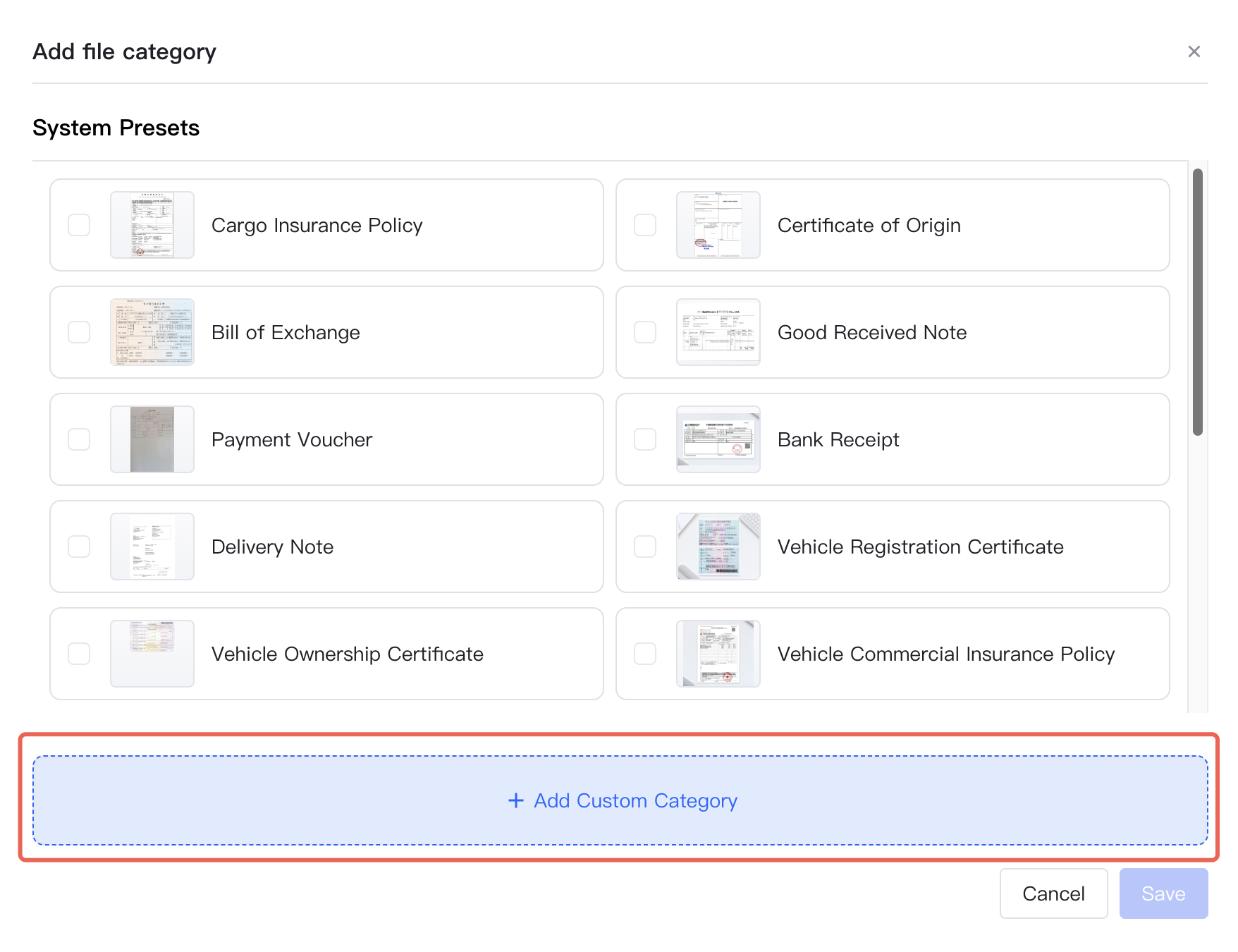
2. Click **Add Custom Category**, upload file
<img src="https://mintcdn.com/docflow-bbb41569/k_S89GR_8tYdQ75P/docflow-global/en/images/setup_category_step_4-en.png?fit=max&auto=format&n=k_S89GR_8tYdQ75P&q=85&s=b57f44cfcb1c2e8eb1b26f1cde22e240" alt="add custom file" width="1756" height="1350" data-path="docflow-global/en/images/setup_category_step_4-en.png" />

## Configure Classification Name

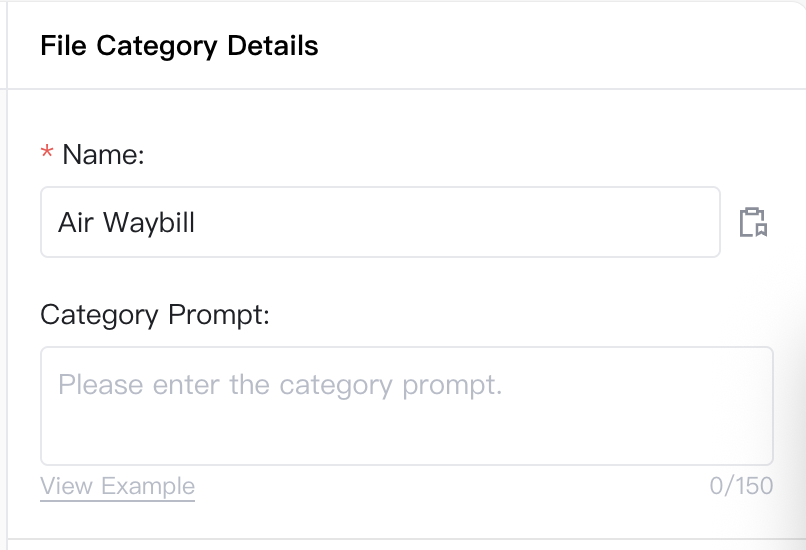
Set classification name
<img src="https://mintcdn.com/docflow-bbb41569/k_S89GR_8tYdQ75P/docflow-global/en/images/setup_category_step_2.1-en.png?fit=max&auto=format&n=k_S89GR_8tYdQ75P&q=85&s=1514487940e7e2a846da749f382711cd" alt="set category name" width="806" height="550" data-path="docflow-global/en/images/setup_category_step_2.1-en.png" />

## Configure Sample Fields

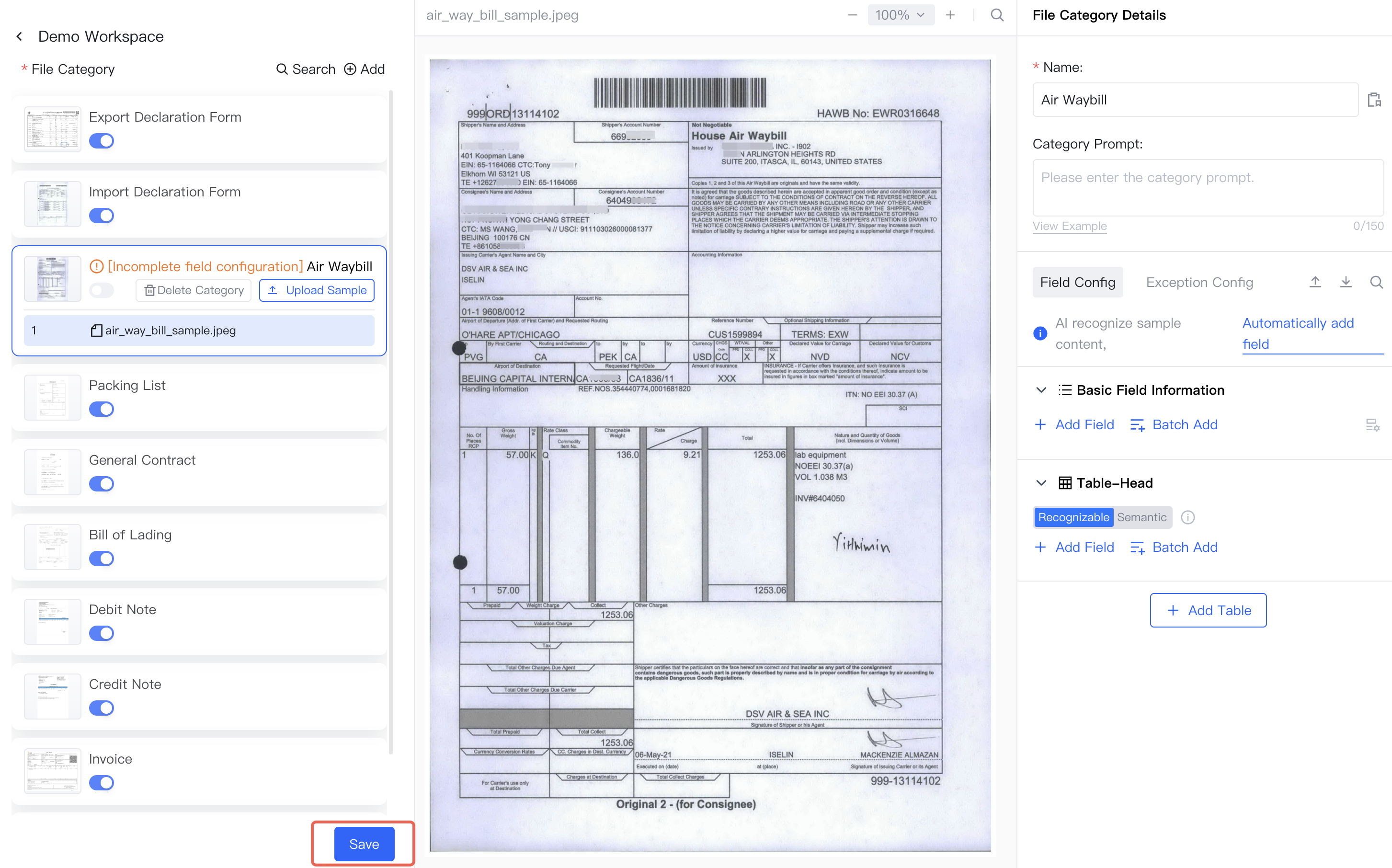
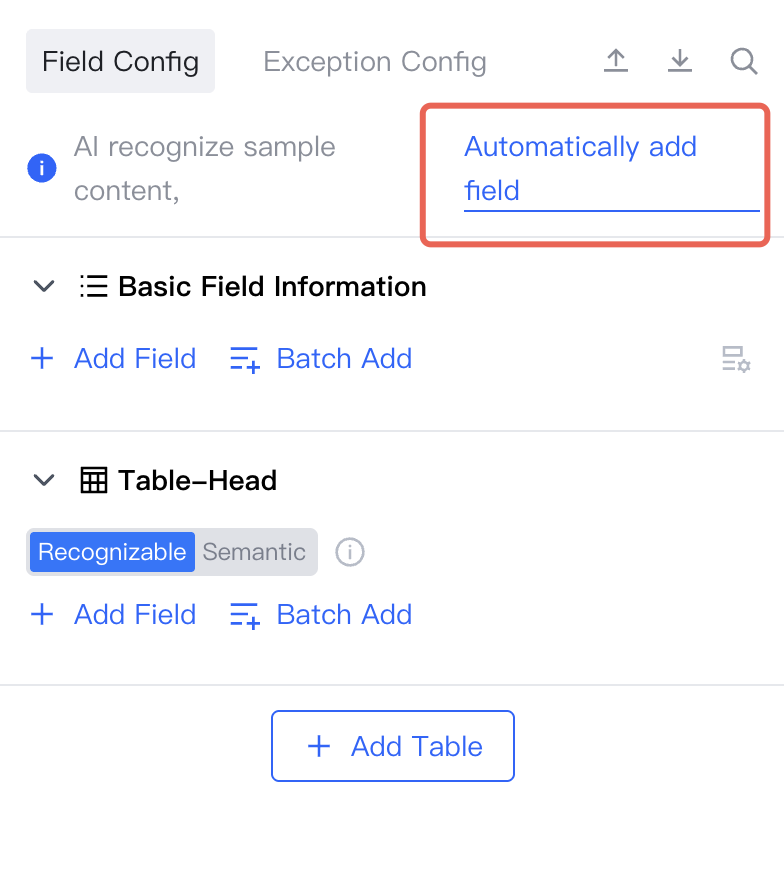
Click **Automatically Add Fields**, AI will automatically add fields based on the document
<img src="https://mintcdn.com/docflow-bbb41569/k_S89GR_8tYdQ75P/docflow-global/en/images/setup_category_step_5.2-en.png?fit=max&auto=format&n=k_S89GR_8tYdQ75P&q=85&s=244e49b4d6b99b3cd2fb9239201d823a" alt="add fields automatically" width="784" height="870" data-path="docflow-global/en/images/setup_category_step_5.2-en.png" />

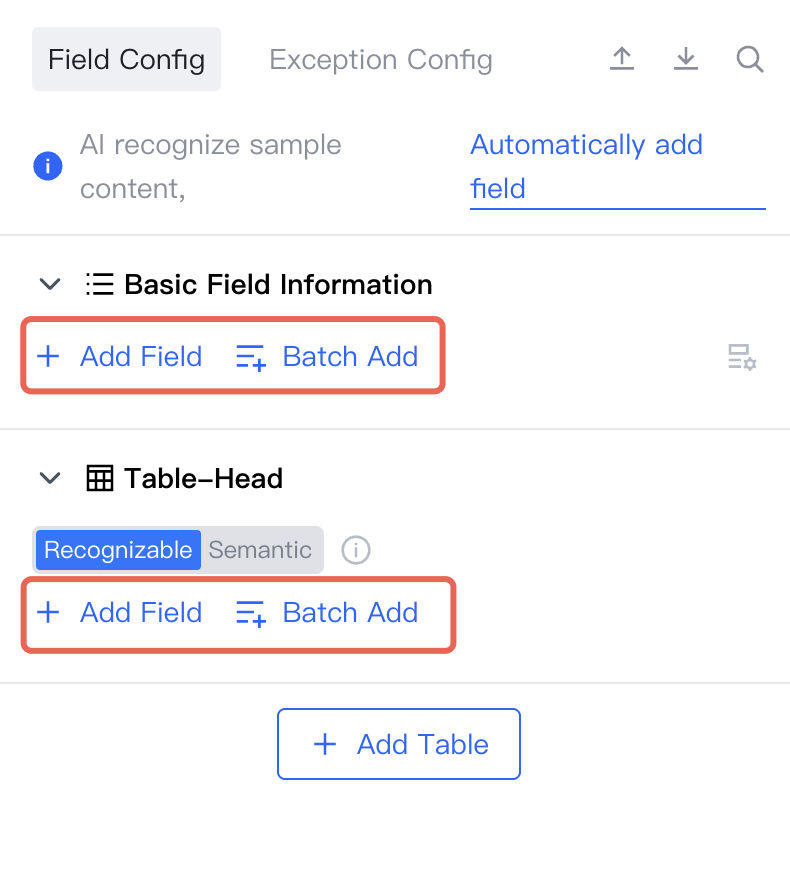
You can also manually add, adjust, and delete fields
<img src="https://mintcdn.com/docflow-bbb41569/k_S89GR_8tYdQ75P/docflow-global/en/images/setup_category_step_5.1-en.png?fit=max&auto=format&n=k_S89GR_8tYdQ75P&q=85&s=f61cc3797ca83328c0485d734405d951" alt="add fields manually" width="790" height="896" data-path="docflow-global/en/images/setup_category_step_5.1-en.png" />

## Save Configuration

Click **Save**

<img src="https://mintcdn.com/docflow-bbb41569/k_S89GR_8tYdQ75P/docflow-global/en/images/setup_category_step_6-en.png?fit=max&auto=format&n=k_S89GR_8tYdQ75P&q=85&s=28cf8d74a0ec4c0c3d1e715c4c647738" alt="save" width="2906" height="1812" data-path="docflow-global/en/images/setup_category_step_6-en.png" />